
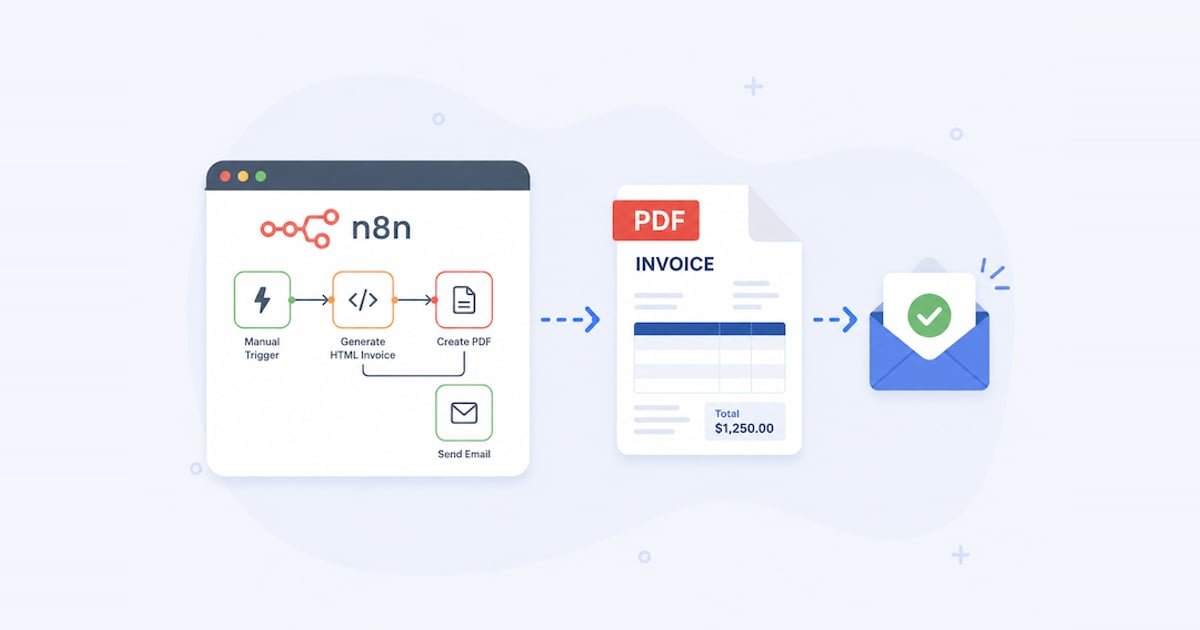
Generate and Send PDF Invoice with n8n
Build an automated n8n invoice workflow that collects customer data, creates an HTML invoice, converts it to PDF with html2pdf.app, and sends it by email.
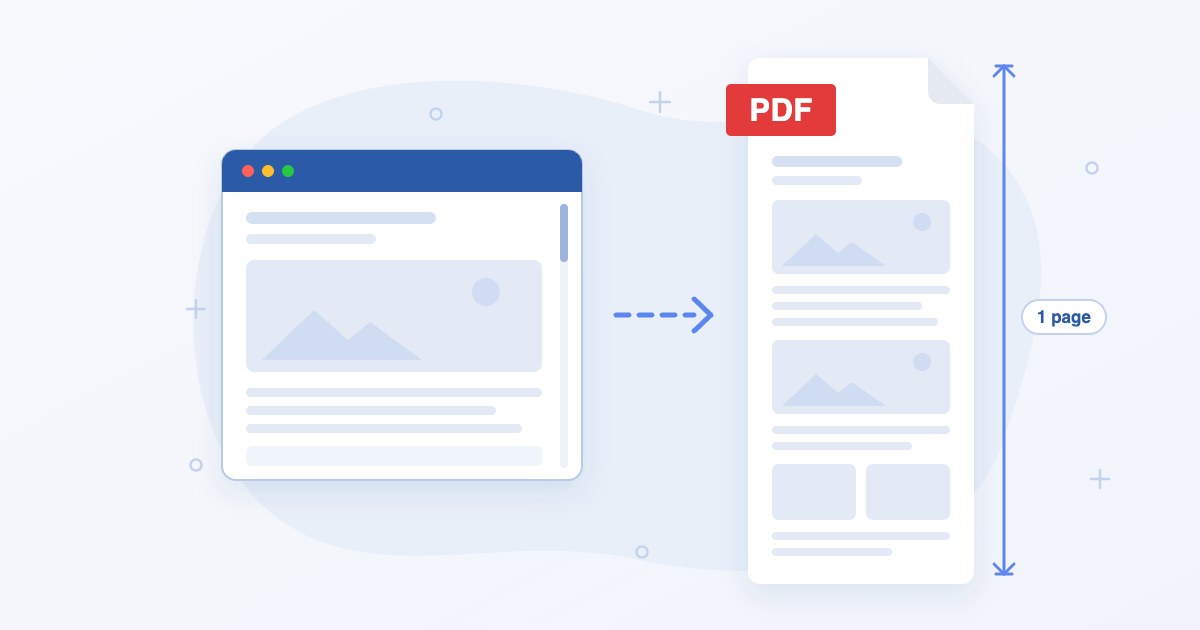
PDFs come in sheets of paper. That's fine for an invoice, but turn a long HTML page into an A4 PDF and you get the usual mess: a screenshot cut in half at the bottom of page 3, the site's fixed header stamped on every page, and a last page with two lines on it.
Most of the time what I actually want is a single-page PDF: one page as wide as the layout and as tall as the HTML, with no page breaks at all. It's the closest thing to a full-page screenshot that still has selectable text and working links.
We added a singlePage option to html2pdf.app in November, and converting HTML to a single-page PDF turned out to be a lot more than "measure the page, print it that tall". This post is what I learned along the way.
singlePage: true and the API does all of that for you.I use a single page when the PDF is going to be read on a screen:
If someone's going to print it, I'd stick with normal pages. A printer can't do much with a 4-meter page except shrink it into a strip or chop it up again.
Open the page in headless Chrome, read document.documentElement.scrollHeight, and call page.pdf() with that as the height. Done, in theory.
To see how far that gets you, I made a test page: a long article with 24 images that load as you scroll. Half use loading="lazy", the other half a small IntersectionObserver loader like a lot of sites have. I also added one break-before: page rule, the kind that sneaks in from a print stylesheet or a CMS. Then I printed it with Puppeteer and Chrome 157.
3 of the 24 images loaded. The rest were grey boxes. And my single page was two pages.
Here's what gets in the way, roughly in the order you'll run into it:
break-before: page and the old page-break-after: always still start a new page, no matter how tall the paper is.vh units. This one surprised me. In print, 100vh means 100% of the paper's height, not the window's. Make the paper 15,000 pixels tall and a full-screen hero becomes 15,000 pixels tall too, shoving everything else onto page two. While we were building this, tailwindcss.com's min-height: 100vh sections blew up exactly like that.page.pdf() uses the page's print CSS unless you tell it not to, and print stylesheets love hiding things.This is where I ended up. It sets the window to the PDF's width, switches to screen styles, scrolls to the bottom so lazy images load, waits for them, kills forced page breaks, and then measures and prints. I tested it with Puppeteer 25 and Chrome 157. If you haven't used Puppeteer before, my older post on converting HTML to PDF with Puppeteer covers the setup.
npm install puppeteerimport puppeteer from 'puppeteer';
const url = 'https://example.com';
const width = 1280; // PDF page width in pixels
const browser = await puppeteer.launch();
const page = await browser.newPage();
// Lay the page out at the PDF's width, using its screen styles.
await page.setViewport({ width, height: 1080 });
await page.emulateMediaType('screen');
await page.goto(url, { waitUntil: 'networkidle0' });
// Scroll to the bottom so lazy images start loading.
await page.evaluate(async () => {
const root = document.documentElement;
root.style.scrollBehavior = 'auto'; // see below
const deadline = Date.now() + 10000; // for pages that never end
while (
window.scrollY + window.innerHeight < root.scrollHeight &&
Date.now() < deadline
) {
window.scrollBy(0, window.innerHeight * 0.9);
await new Promise(resolve => setTimeout(resolve, 200));
}
window.scrollTo(0, 0);
});
// Give the images that started loading up to 10 seconds to finish.
await page.evaluate(() => {
const pending = Array.from(document.images)
.filter(img => !img.complete)
.map(
img =>
new Promise(resolve => {
img.addEventListener('load', resolve, { once: true });
img.addEventListener('error', resolve, { once: true });
}),
);
const timeout = new Promise(resolve => setTimeout(resolve, 10000));
return Promise.race([Promise.all(pending), timeout]);
});
// Kill forced page breaks.
await page.addStyleTag({
content: '* { break-before: auto !important; break-after: auto !important; }',
});
// Measure, then print one page that tall.
const height = await page.evaluate(() => document.documentElement.scrollHeight);
await page.pdf({
path: 'page.pdf',
width: `${width}px`,
height: `${height + 2}px`, // see below
printBackground: true,
});
await browser.close();On the test page, this version loads all 24 images and prints one page, a little over 4 meters tall. Two lines in there probably look strange, so here's why they're there.
scrollBehavior = 'auto'?Because of sites with scroll-behavior: smooth, and there are more of them than you'd think: Bootstrap 5 turns it on by default. Our own site is one. Without that line, every scrollBy becomes a smooth animation that the next step interrupts, so the loop creeps down the page a bit at a time. On my test page it took 24 steps instead of 14. Our renderer ran into this on our own home page and spent 12 seconds of a 14-second render just scrolling.
+ 2 on the height?Chrome rounds the paper size, and content even a fraction of a pixel taller than the paper spills onto a second page. We had 6,372.36 pixels of content come out as two pages because Chrome made the paper 6,372.16 pixels tall.
The catch is that the extra pixels leave a thin strip of the page's background at the bottom, which shows up as a white line under a dark footer. If you've seen the "white line at the bottom, but one more pixel gives me two pages" complaint, that's the one.
The script doesn't do anything about vh, so a full-screen hero still breaks it. I added one to the test page and got two pages again. The fix is to find every element whose size depends on the window and pin it to its on-screen size before you print. It's doable, but it means checking heights, min-heights, padding, margins, flex-basis and positioned elements, and every one of those has its own edge cases.
Wide content is the other one. If something on the page is wider than the paper, Chrome lays the page out wider and shrinks it to fit, by up to 1.5 times. Shrunk content is shorter than what you measured, so you end up with a blank band at the bottom of the PDF.
You can fix both. It's just that each fix tends to turn up another problem, and you're also running Chrome on a server, keeping it updated and making sure it has the fonts your pages need. That's a big part of why we built this into the API.
With the API it's one request. singlePage sizes the page, lazyLoad does the scrolling, and width sets the layout width:
curl --fail --show-error --output page.pdf --request POST \
  --url https://api.html2pdf.app/v1/generate \
  --header 'Content-Type: application/json' \
  --header 'X-API-Key: <your-api-key>' \
  --data '{
    "html": "https://example.com",
    "singlePage": true,
    "lazyLoad": true,
    "width": 1280
}'
Or from Node 18+ with plain fetch:
import { writeFile } from 'node:fs/promises';

const response = await fetch('https://api.html2pdf.app/v1/generate', {
  method: 'POST',
  headers: {
    'Content-Type': 'application/json',
    'X-API-Key': process.env.HTML2PDF_API_KEY,
  },
  body: JSON.stringify({
    html: 'https://example.com',
    singlePage: true,
    lazyLoad: true,
    width: 1280,
  }),
});

if (!response.ok) {
  throw new Error('PDF generation failed with status ' + response.status);
}

await writeFile('page.pdf', Buffer.from(await response.arrayBuffer()));
If you're not on Node, the code examples have the same request in PHP, Python, Ruby, Java, C# and Go. In n8n or a similar tool, it's the same three fields in the JSON body of the HTTP Request node, set up like in my n8n invoice guide. And if you just want to see how a page comes out before writing any code, both options are in the playground.
It does everything the script above does, plus the parts the script skips:
vh keep their on-screen heightA lot of the time there's no URL at all, just HTML you generated from a template: a receipt, an order confirmation, a report. That's where a single-page PDF really pays off, because the length depends on the data and you never know where a page break would land.
In Puppeteer, swap page.goto() for page.setContent() and keep the rest of the script:
import { readFile } from 'node:fs/promises';

const html = await readFile('receipt.html', 'utf8');
await page.setContent(html, { waitUntil: 'networkidle0' });
One thing that caught me out: HTML loaded this way has no address, so relative paths to images and stylesheets go nowhere. My test page loaded 0 of its 24 images like that. Use absolute URLs, inline the files, or add a <base href="https://your-site.com/"> tag to the <head>. With the base tag, all 24 loaded again.
With the API, put the HTML itself in the html field instead of a URL. For a receipt designed for 80 mm paper, that's a width of about 302 pixels:
body: JSON.stringify({
  html: receiptHtml, // your HTML as a string
  singlePage: true,
  width: 302,
}),
You usually don't need lazyLoad for HTML you wrote yourself. The same relative path rule applies, since the API can't see your local files either. The request body can be up to 5 MB, so for anything bigger, put the HTML somewhere public and send its URL.
Whatever width you want the layout at. Without width, the page is as wide as the format, which is A4 (794 pixels) by default, and a lot of sites show their tablet layout at that size. I use 1280 or 1440 for desktop and 390 when I want the phone layout. For your own HTML, match the width of your design.
Yes. marginTop and marginBottom are added to the page height, and a headerTemplate or footerTemplate shows up once, at the very top and the very bottom. The only thing that's ignored is height, since the content decides it.
Screen, by default, so you get what a visitor sees. Set media to print if you really do want the print stylesheet.
They show up once: at the top, or at the bottom if they're pinned to the bottom of the window. With lazyLoad on, anything that reacts to scrolling can end up in the PDF too, like a header that slides in or a carousel caught halfway.
It probably loaded after the PDF was made. Add waitFor with a number of seconds, up to 10. With lazyLoad, the wait starts after the scrolling.
Two things, and they're the same with normal PDFs. If an app scrolls inside a div with overflow: auto instead of scrolling the page, only the visible part of that box is printed. And content more than 1.5 times wider than the page gets cut off on the right.
Browsers and most PDF viewers open really long pages fine, but Adobe Acrobat won't open a page taller than 200 inches (19,200 pixels). Long pages full of photos also get heavy: every 5 MB of PDF costs one credit, and the Free plan caps PDFs at 1 MB. The details are under Limits.
No. It's off by default because the scrolling adds time on long pages, so I only turn it on for pages that actually load images as you scroll.
That's about it. If you've been fighting page.pdf() to get HTML onto a single page, I hope the script saves you an afternoon. And if you'd rather not maintain it yourself, the Free plan gives you 100 credits a month, which is plenty to try singlePage on your own pages. The full reference is in the docs under Single-page PDFs and Lazy-loaded images.
Build an automated n8n invoice workflow that collects customer data, creates an HTML invoice, converts it to PDF with html2pdf.app, and sends it by email.
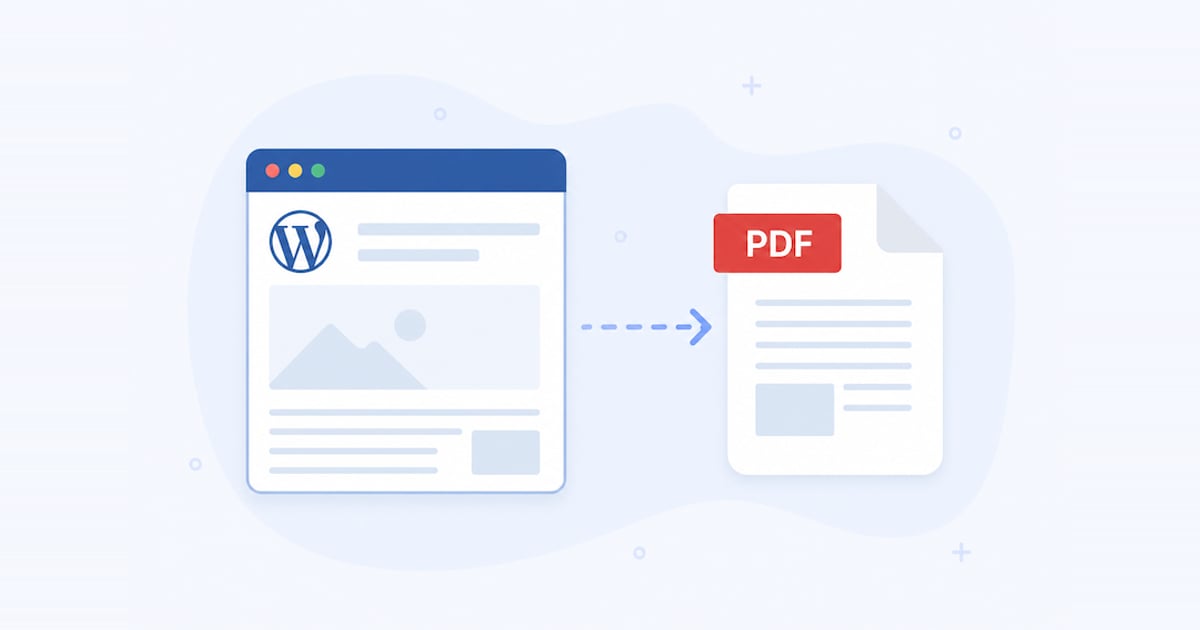
Add a "Save as PDF" link with the HTML to PDF Converter plugin, then use print CSS so the PDF shows only your content, without the menu, sidebar or footer.
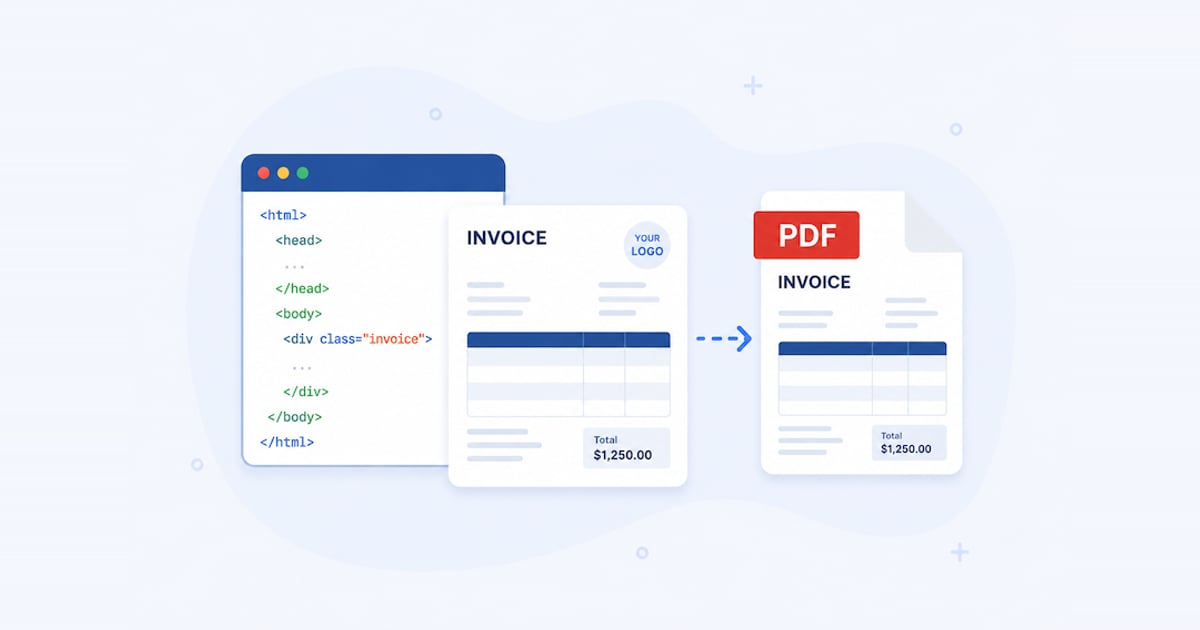
Fill an HTML invoice template with Handlebars in Node.js, send the HTML to the html2pdf.app API with axios, and save the PDF it returns.
